The Last Caretaker · Mod

v1.0.2

Memory Finder

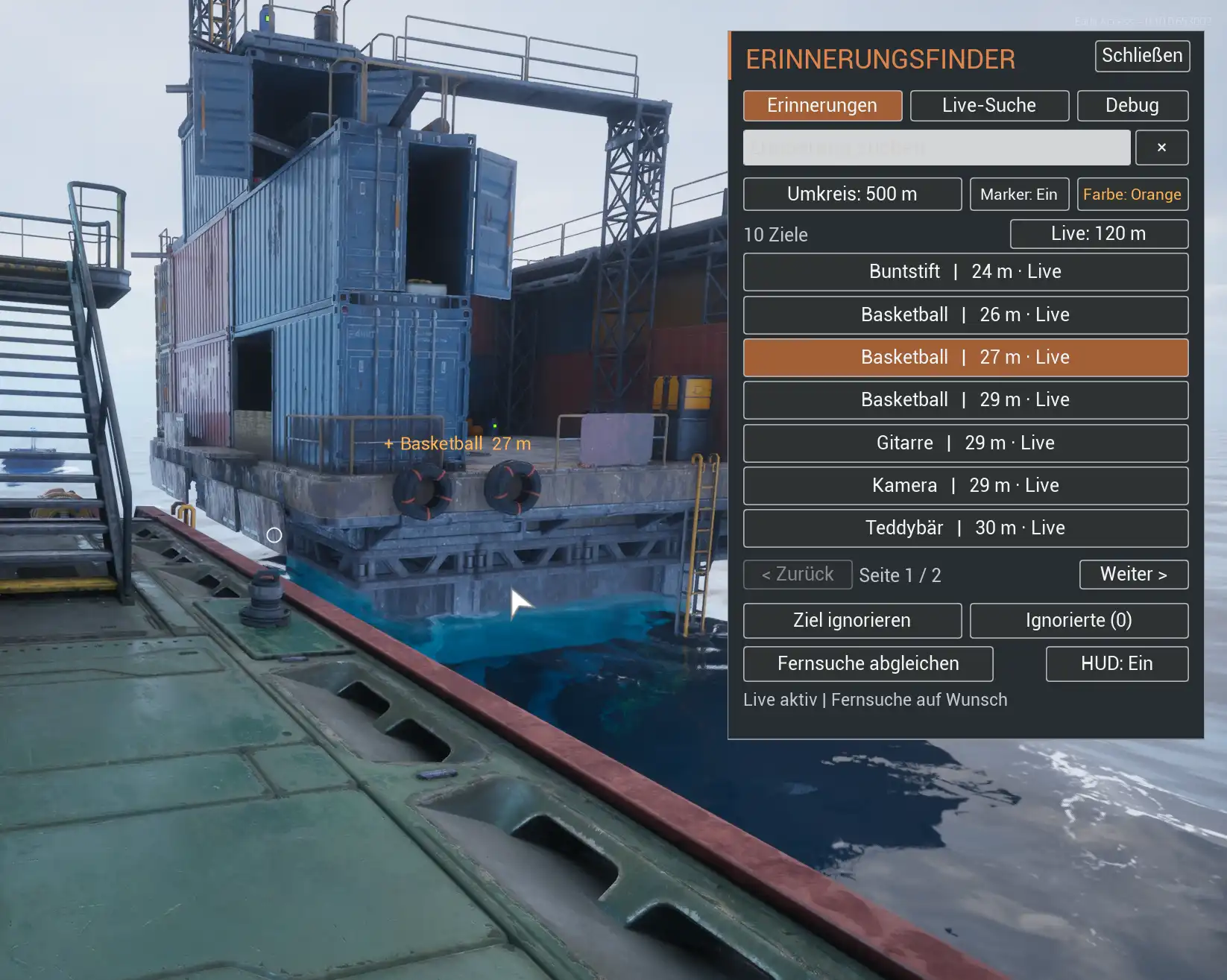
Looking for a particular memory? Memory Finder shows locations with distances and a target marker in game. You can also search your surroundings for paint cans, cartridges and scrap.

Download on Nexus Mods
Memory Finder in game: target list with a selected basketball and an orange target marker; interface shown in German

Features at a glance

Memories, live search and position checks

The memory search combines automatic detection nearby with optional distant target sync from your saved game. Other objects and position comparisons have their own tabs.

Memories

Find your next memory

The finder detects memories the game has loaded around you. Use “Sync distant targets” to add locations from a copy of your saved game.

  • Search by name or part of a name.
  • Results are sorted by distance.
  • Select a location to mark it in game.

Distant target sync is exclusively for memories.

Live search

Discover more around you

Also look for paint cans, PECO cartridges and scrap. Enable the categories you want individually or together.

  • Find objects in your currently loaded surroundings.
  • Filter by name and select a target with its distance.
  • Use the same marker and display options as for memories.

Live search only: no distant target sync for paint cans, cartridges or scrap.

Position check

Check an unexpected position

Is an object somewhere unexpected? The “Debug” tab lets you compare its position with the location in the catalogue.

  • Check the distance and height difference.
  • Compare the object marker with the blue catalogue marker.
  • Show exact coordinates if needed.

The comparison does not move or collect objects.

Controls

Adjust the search and display

Target marker and compact HUD

The marker guides you to the selected object. The small HUD shows its name, distance and detection status. Toggle player coordinates and the in-game clock independently in “Extras”. Detected pickups are reflected in the memory search.

Two different ranges

The list range limits known memory targets to 120 m, 500 m, 2 km or unlimited. Live detection independently searches within 120, 175 or 250 m.

Sync distant targets when needed

Distant target sync only runs when you start it. You can follow its progress or cancel it. It reads a copy of your saved game, so save in game first if you want it to reflect recent changes.

Hide individual locations

Ignore memory locations you no longer want to search for. Other copies of the same item remain visible. Restore hidden locations from the “Ignored” list.

Your display, your color

Toggle the HUD and markers independently. Choose white, yellow, orange, pink or green; the marker color is saved and remains visible while the window is open.

Choose your window shortcut

M is the default. In “Extras”, choose a different key under “Key” and click “Apply” to save it. Your choice is kept after restarting.

Show player coordinates

See your current X/Y/Z position directly in the HUD. Toggle “Coordinates” off or on in “Extras” as needed. Coordinates are on by default.

In-game clock with day and night

Enable “In-game time” in “Extras” to show the game world’s time in 24-hour format, with a sun/moon icon and Day/Night indicator. The clock starts off; your preference is saved.

German or English

The interface and target names follow your game language: German when the game is set to German, English otherwise.

First steps

Find your first target

After installing the mod, load your save. Everything else is handled in game. M is the default window shortcut; after changing it, use your chosen key instead.

  1. OpenPress M and choose “Memories” or “Live Search”. In Live Search, enable the object categories you want.
  2. SearchEnter a name or part of one. For distant memory targets, you can start “Sync distant targets”.
  3. SelectClick a target in the list sorted by distance. Use Back and Next to browse the results.
  4. FindClose the window and follow the marker. Your target’s name and distance remain visible in the HUD.

The game is not paused while the mod window is open. When typing in the search field, close the window with Escape or the Close button.

Controls & indicators explained
Window shortcut / Escape
M opens and closes the window by default. In “Extras”, enter a letter A–Z, a number 0–9 from the number row or F1–F12 in “Key”, then click “Apply” to save it. “Default” restores M. Choose a key that is free in your setup; key combinations are not supported. While typing in the search field, use Escape or “Close” to close the window.
If M is already in use
Close the game, then edit or create keybind.txt in the mod’s scripts/data folder. Enter only your chosen key on one line, for example F10. Start the game and use that key to open the finder.
Extras: coordinates and clock
“Coordinates” shows your X/Y/Z position and is on by default. “In-game time” starts off and shows the game world’s time in 24-hour format, with a sun/moon icon and Day/Night indicator: day starts at 05:00, night at 23:00. Both toggles and your window shortcut are saved.
Live / Saved / last seen
These labels distinguish currently detected targets, save-based hints and previously observed targets. “Last seen” does not confirm that the object is still there.
List range
Filters known memory targets by distance. Increasing the list range does not automatically expand live detection.
Live radius
120, 175 or 250 m: detects already loaded objects around you, including above or below your position. It does not load distant areas.
Ignored
Hidden memory locations stay hidden after restarting. The selection applies to all saves using this mod installation, so check the list when starting a new playthrough too.
Position check
Select a memory first and open “Debug”. Start the comparison; extra technical details are optional. For a nearby object detected live, the position updates every two seconds. A position difference alone does not prove that an object is unreachable.
Updating an existing installation
Use Mod Only even if you originally installed Complete Package. Close the game and copy the new mod folder over the existing one. Keep your personal files in scripts/data: ignored.tsv, marker-color.txt, keybind.txt and extras.ini. The download does not include or overwrite these settings.

Installation

Get started in a few steps

Both options are available on the same official Nexus Mods page. Choose the package that fits your setup.

Mod Only requires an existing, compatible UE4SS installation with UEHelpers. Having other mods installed is not enough. If Windows asks to replace existing files when copying the complete package, cancel the copy and check your loader installation first. This preserves your loader files, settings and other mods.

Complete Package – recommended for beginners

Includes TLC Memory Finder and the tested UE4SS mod loader, with the required components and UEHelpers.

  1. 01

    Close the game and extract the ZIP.

  2. 02

    In Steam, select The Last Caretaker → Manage → Browse local files.

  3. 03

    Copy the included Voyage folder directly into the game folder Steam opened and merge the folders. Do not open its existing Voyage subfolder first!

  4. 04

    Start the game, load your save and press M to open the finder.

The Steam game folder itself is often named Voyage. Seeing Voyage twice in the full path is correct. This package needs no separate loader download.

Mod Only – for existing UE4SS installations

Contains only the finder. A compatible UE4SS mod loader with UEHelpers must already be installed.

  1. 01

    Close the game and extract the ZIP.

  2. 02

    Copy the included TlcMemoryFinder folder into Voyage\Binaries\Win64\ue4ss\Mods\ inside the game folder.

  3. 03

    Start the game, load your save and press M.

The included enabled.txt enables the mod. If you previously disabled it explicitly in the loader, enable it there again. This option does not replace your existing UE4SS files.

Your save

The original save stays untouched

The Memory Finder does not change your save. Distant target sync only reads a copy of your saved game.

You stay in control

The mod shows targets, but does not collect anything automatically or teleport objects. You start and stop distant target sync yourself.

Settings stored separately

Ignored locations, marker color, window shortcut and Extras preferences are stored as local finder settings, not in your game save. Loading an older save may bring back items you previously collected.

Good to know

A search aid, not a complete collection checklist

  • Live detection only finds objects the game has already loaded. A larger search radius does not load distant areas.
  • HoloMemories and paintings are not included in the search.
  • After loading a save, use “Sync distant targets” again if needed. Its results are not kept between play sessions.
  • Position comparison does not fix game issues. When several identical objects exist, matching an object to its catalogue entry is not always possible.

Compatibility

For The Last Caretaker Update 6

These details apply to the game version listed here. Major game updates may require an updated version of the mod.

The included catalogue does not guarantee that every location has an item in your save or can always be detected live. Catalogue corrections are included in mod updates.

Catalogued memory locations
1,106
Tested game version
Update 6 · Build 25982825
Modloader
UE4SS
Download
Nexus Mods

FAQ

What to know before you start

Which download do I need?

Mod Only requires an existing, compatible UE4SS installation with UEHelpers. Having other mods installed is not enough. Without a suitable UE4SS installation, choose Complete Package; if you have other mods, check your loader first to avoid overwriting files or settings. Instructions for both are in the installation section above.

Do I need UE4SS?

Yes, the finder needs UE4SS with UEHelpers. Both are included in Complete Package. For Mod Only, a compatible installation must already be present.

How do I open the finder?

Load your save and press M, or your chosen window shortcut. Change it in “Extras”. Use your shortcut, Escape or “Close” to close the window. While typing in the search field, use Escape or “Close”.

Why aren't all memories showing up?

Check your search text, range and “Ignored” list. Live detection only finds loaded objects; use “Sync distant targets” to add more memory locations. An empty list only means the finder has no known targets with your current settings, not that you have collected everything.

What does distant target sync do, and how long does it take?

“Sync distant targets” adds memories from a copy of your saved game, not paint cans, cartridges or scrap. Save in game first if you want the latest state. Large saves can take several minutes, with a brief pause at the beginning. The remaining work runs in small batches while you keep playing. Progress and “Cancel sync” are available in the finder window. Invalid saved positions are skipped, with a brief notice showing how many. The remaining targets are imported. Skipped items are not marked as collected, repaired or moved. Run the sync again after loading a save when needed.

Does the mod change my save?

No. Distant target sync only reads a copy of your saved game. The mod neither modifies your original save nor collects items for you.

Can I remove the mod?

Yes. Close the game and remove TlcMemoryFinder from the UE4SS Mods folder. Also remove any finder entry you explicitly added to the loader’s mod lists. Your game saves are kept; deleting the mod folder removes its local settings. Do not remove the loader if other mods still need it; follow the included uninstall instructions for the complete package.

Do I need a paid Nexus Mods account?

No. Nexus Mods requires a free user account to download files. A Premium subscription is not required.

Download

Download Memory Finder

Choose the download option that matches your setup on the Nexus Mods page.

  • Complete Package – recommended for beginners
  • Mod Only – for existing UE4SS installations

Downloading from Nexus Mods requires a free user account. A Premium subscription is not required.

Download on Nexus Mods